


Introduction
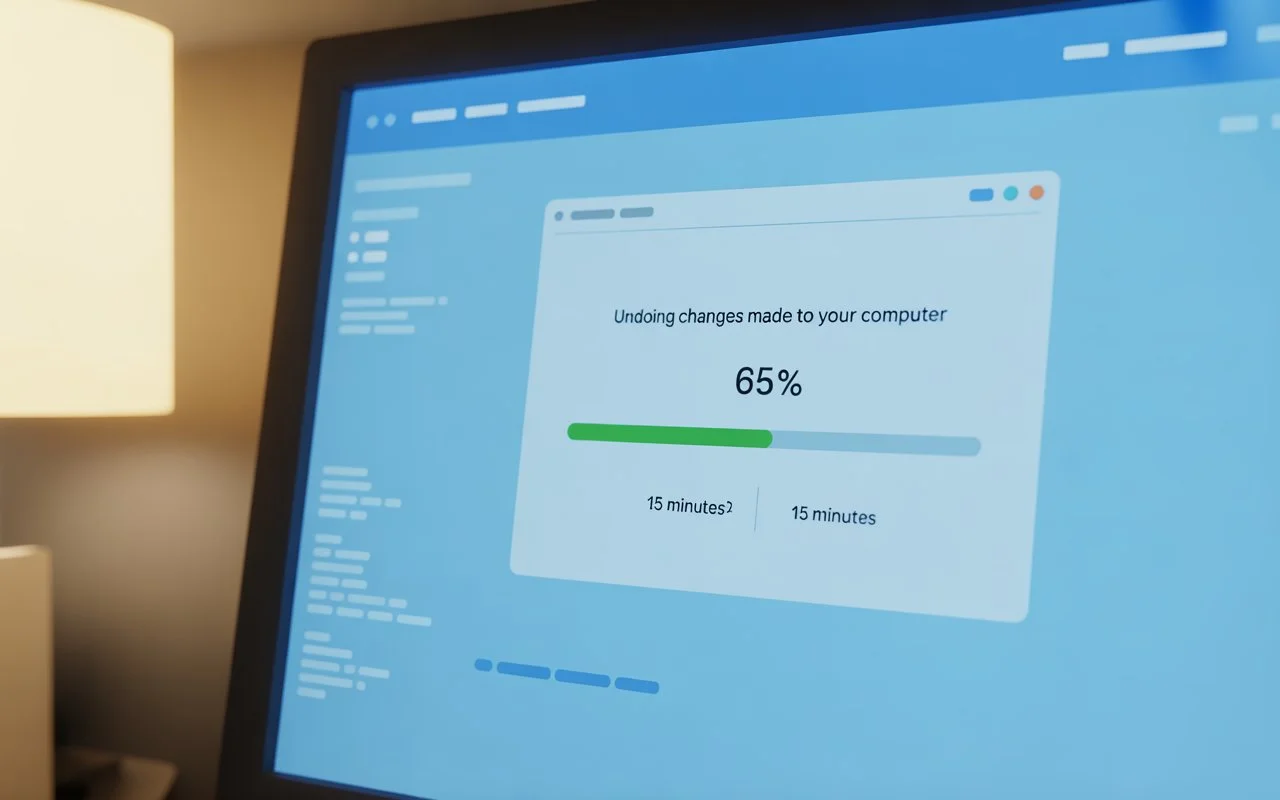
Have you ever turned on your computer and been greeted with that slightly nerve-wracking message: “Undoing changes made to your computer”? Your heart sinks. You stare at the loading screen. Minutes pass. Maybe more. And you wonder — how long is this supposed to take?
If you’ve found yourself asking, “undoing changes made to your computer how long should it take?” you’re not alone. It’s a common question, especially for Windows users after an update fails or a system change doesn’t go as planned.
In this guide, we’ll break everything down in simple terms — what this message means, how long it usually lasts, why it happens, and what you can safely do if it seems stuck.
1. What Does “Undoing Changes Made to Your Computer” Mean?
 When you see this message, it usually means a recent update or installation failed, and your system is trying to roll back to
its previous stable state.
Think of it like your computer saying,
“Oops, that didn’t work — let me put everything back the way it was.”
Your system is reversing changes to prevent damage or instability. This often happens after:
-
A Windows update fails
-
A driver update doesn’t install properly
-
A system configuration change causes issues
It’s actually a built-in safety feature. So while it may feel alarming, it’s designed to protect you.
2. Why Does This Message Appear?
There are several reasons why your computer starts undoing changes:
Failed Windows Updates
The most common cause. If an update file is corrupted or interrupted, the system reverses it.
Power Interruption
Was there a power outage? Did the laptop battery die mid-update? That can trigger rollback.
Driver Conflicts
Hardware drivers sometimes clash with updates.
Low Storage Space
Updates need space. If your disk is nearly full, installation may fail.
Software Compatibility Issues
Some programs don’t play nicely with newer system updates.
In short, your PC ran into a problem and is doing damage control.
3. Undoing Changes Made to Your Computer: How Long Is Normal?
This is the big question.
Typical Duration
In most cases, it should take:
-
20 to 45 minutes
On slower systems or older hardware:
-
Up to 1 hour
If it’s been under an hour, it’s usually normal.
When to Worry
If it’s been:
-
More than 2 hours
-
Restarting repeatedly
-
Frozen on the same percentage
Then the system may be stuck.
Patience is important — but so is knowing when something’s wrong.
4. What Affects the Time It Takes?
 Several factors influence how long the rollback process lasts.
1. System Speed
Older processors take longer.
2. Hard Drive Type
-
SSD = Faster
-
HDD = Slower
3. Update Size
Large cumulative updates take longer to revert.
4. System Errors
More complicated issues mean more time fixing them.
It’s like cleaning up after a small spill versus a house party. Bigger mess? Longer cleanup.
5. Signs It’s Working vs. Signs It’s Stuck
How do you know if your computer is actually undoing changes — or frozen?
Signs It’s Working
-
Loading circle still spinning
-
Percentage slowly increasing
-
Hard drive light blinking
Signs It’s Stuck
-
Frozen for over 1–2 hours
-
No movement on screen
-
No fan or disk activity
If there’s absolutely no progress after extended time, intervention may be needed.
6. What to Do If It’s Taking Too Long
Before doing anything drastic, wait at least one full hour.
If it’s still stuck:
Step 1: Force Restart
Hold the power button for 10 seconds until it shuts down.
Wait a minute. Then restart.
Step 2: Let Windows Repair Itself
Your system may automatically enter automatic repair mode.
Step 3: Boot into Safe Mode
Safe Mode can help you remove problematic updates.
It’s not ideal — but sometimes necessary.
7. Should You Turn Off Your Computer?
This is the tough call.
If Under 1 Hour
Do NOT turn it off.
Interrupting could corrupt files.
If Over 2 Hours and No Activity
You may need to force shutdown.
Just understand — there is slight risk involved. Think of it like pulling the plug during surgery. Not ideal — but sometimes unavoidable if nothing’s happening.
8. Safe Ways to Fix the Problem
If the system keeps looping:
Run Startup Repair
Let Windows diagnose system issues.
Uninstall Recent Updates
Remove problematic patches from recovery options.
Use System Restore
Roll back to a restore point.
Reset Windows (Keep Files)
Reinstall the system without deleting your documents.
These methods usually resolve the issue without data loss.
9. Preventing the Issue in the Future
No one wants to deal with this repeatedly. Here’s how to reduce the risk:
Keep Storage Space Free
Maintain at least 15–20% free disk space.
Avoid Interrupting Updates
Never shut down during updates.
Use a Stable Internet Connection
Interrupted downloads cause corruption.
Update Drivers Carefully
Install only from trusted sources.
A little prevention saves a lot of stress.
10. Does It Mean You’ve Lost Data?
Here’s some good news.
Most of the time:
Your personal files are safe.
The rollback process mainly affects system files — not documents, photos, or videos.
However, incomplete updates can occasionally cause glitches. That’s why regular backups are essential.
Better safe than sorry, right?
11. When to Seek Professional Help
Consider expert help if:
-
The system won’t boot at all
-
You see blue screen errors repeatedly
-
Repair tools fail multiple times
A technician may reinstall Windows properly or check hardware health.
If your computer is critical for work or school, don’t hesitate too long.
12. Final Thoughts
So, undoing changes made to your computer how long should it take?
In most situations, it’s a waiting game that lasts 20 to 60 minutes. If it stretches beyond two hours without progress, you may need to step in.
While it can feel frustrating, remember — this process is your computer’s way of protecting itself. Like a reset button pressed at the right time, it’s often preventing deeper problems.
Stay patient, avoid panic, and follow safe troubleshooting steps. Most systems recover just fine.
Frequently Asked Questions (FAQs)
1. How long should I wait before turning off my computer?
Wait at least one hour. If nothing changes after two hours, you may consider a forced shutdown.
2. Can I lose my files during this process?
Typically no. Personal files are not usually affected, but backups are always recommended.
3. Why does my computer keep undoing updates repeatedly?
It may be caused by corrupted update files, driver issues, or disk errors.
4. Is this problem common after Windows updates?
Yes, especially after large feature updates or interrupted installations.
5. Can low storage cause update rollback?
Yes, insufficient disk space can cause updates to fail and trigger undoing changes.
