


Introduction
What Does Collate Mean When Printing?
Have you ever stood in front of a printer, staring at the settings, wondering what on earth “collate” actually means? You’re not alone. It’s one of those printing terms that sounds technical but is actually very simple once you break it down.
In this in-depth guide, we’ll unpack what collate means when printing, why it matters, when you should use it, and how it affects your documents. We’ll keep things conversational, practical, and free of confusing jargon—because printing shouldn’t feel like solving a puzzle.
Understanding Printing in Everyday Life

Before we zoom in on collating, let’s take a step back.
Printing is something most of us do without much thought—school assignments, office reports, event flyers, or even recipes. We click “Print,” hope for the best, and only notice details when something goes wrong.
That’s where print settings come into play. Options like paper size, orientation, and layout shape how your document comes out. Collation is one of these quiet but powerful settings that can either save you time—or cost you extra effort.
What Does Collate Mean When Printing?
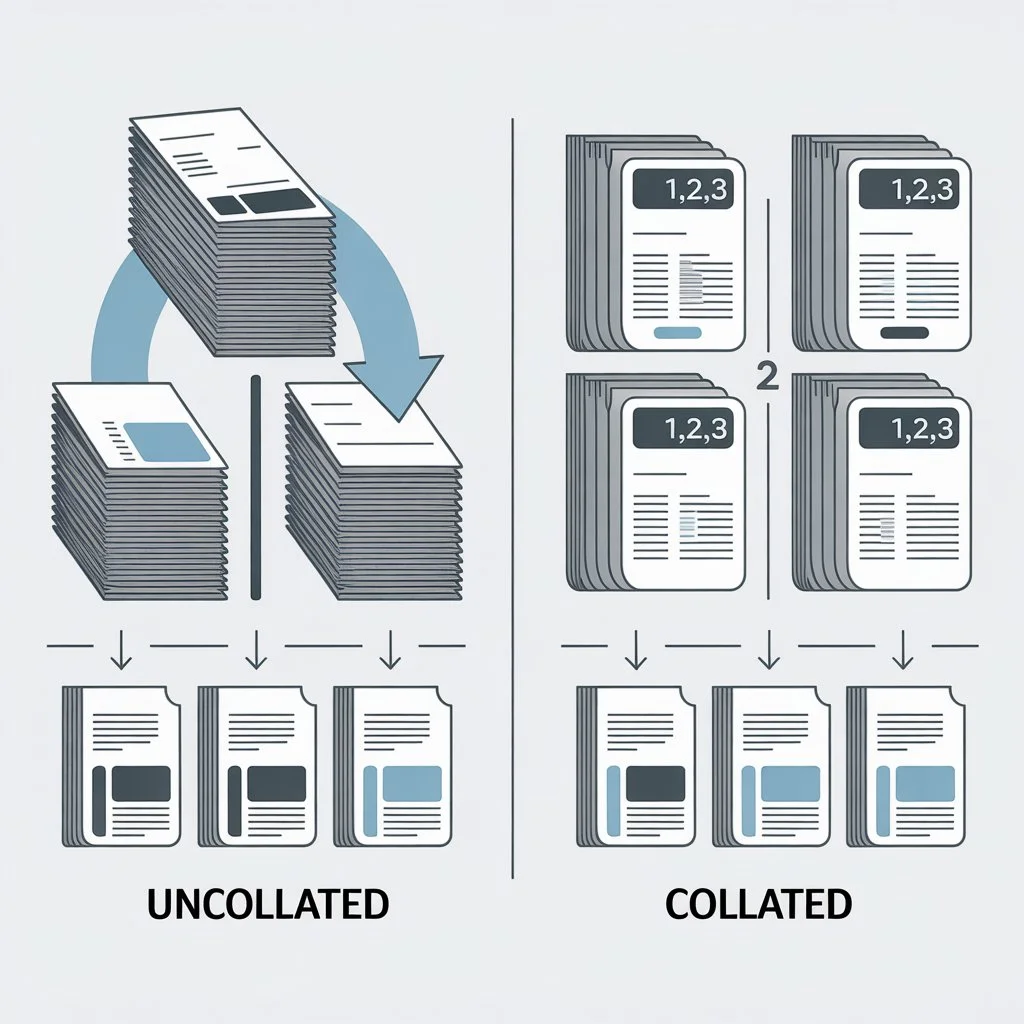
In simple terms, collate means arranging printed pages into a complete, logical order when you print multiple copies of a document.
Let’s say you’re printing a three-page document and you want three copies:
-
With collation on, the printer gives you:
-
Copy 1: Page 1, Page 2, Page 3
-
Copy 2: Page 1, Page 2, Page 3
-
Copy 3: Page 1, Page 2, Page 3
-
-
With collation off, the printer gives you:
-
Page 1, Page 1, Page 1
-
Page 2, Page 2, Page 2
-
Page 3, Page 3, Page 3
-
Think of collating like dealing cards into neat hands instead of stacking all the same cards together. The goal is order and convenience.
Why Is Collation Important?
At first glance, collation may seem like a small detail. But in real-world printing, it plays a big role.
When pages are already in the right order, you don’t have to manually sort them afterward. This matters especially when you’re dealing with:
-
Reports for meetings
-
Exam papers
-
Training manuals
-
Business proposals
-
Event programs
Without collation, you’d spend extra time matching pages. With it, you simply pick up a finished set and move on.
Collated vs Uncollated Printing Explained
To really understand collate, it helps to compare the two options side by side.
Collated Printing
-
Prints complete document sets
-
Pages are grouped per copy
-
Ideal for handouts or bound documents
-
Saves time after printing
Uncollated Printing
-
Prints same pages together
-
All page 1s first, then page 2s, and so on
-
Useful for single-page documents or custom assembling
-
Requires manual sorting later
Neither option is “better” by default—it all depends on what you’re printing and how you plan to use it.
A Real-World Example You’ll Relate To

Imagine baking cupcakes for a party. You make chocolate, vanilla, and strawber
-
Collated style: Each guest gets one of each flavor.
-
Uncollated style: You line up all chocolate cupcakes first, then vanilla, then strawberry.
If you’re handing out plates, the collated approach is clearly easier. Printing works the same way.
When Should You Use Collated Printing?
Collation is most useful when your document has more than one page and you need multiple copies.
Best situations for collating:
-
Multi-page reports
-
Booklets or manuals
-
School assignments for multiple students
-
Meeting handouts
-
Presentation notes
In these cases, collating saves time, reduces mistakes, and gives your work a polished look.
When Is It Better Not to Collate?
Surprisingly, there are times when turning collation off makes sense.
Better without collating:
-
Single-page documents
-
Posters or flyers
-
Forms that need different inserts
-
Custom binding tasks
For example, if you’re printing 100 copies of a one-page flyer, collation adds no value. Every page is identical, so uncollated printing works just fine.
How to Collate on Common Devices
Most modern printers and software make collation easy, even if the setting feels hidden.
On a Computer
When you click “Print,” you’ll usually see a checkbox or dropdown labeled “Collate.”
-
Check it to enable
-
Uncheck it to disable
This applies whether you’re printing from a document editor, PDF viewer, or browser.
On a Copier or Printer Screen
Many office printers let you choose collation directly on the machine’s display. Look for options related to “Copies” or “Page Order.”
The key is to review your print preview before hitting the final button.
Does Collation Affect Printing Speed?
Yes, but usually only slightly.
Collated printing can take a bit longer because the printer processes pages in order for each copy. Uncollated printing may feel faster, especially for large batches.
That said, the time you save not sorting pages afterward often outweighs the few extra seconds spent printing.
Collation and Double-Sided Printing
Things get even more interesting when two-sided printing enters the picture.
When printing on both sides:
-
Collation ensures pages are aligned correctly
-
Each copy stays readable from start to finish
-
Mistakes are less likely
Without collation, double-sided documents can quickly become confusing stacks that need careful rearranging.
For booklets or manuals, collation is almost always the better choice.
Common Misunderstandings About Collating
Let’s clear up a few myths that trip people up.
“Collate means staple or bind”
No, collating only refers to page order. Binding is a separate step.
“It doesn’t matter for short documents”
Even a three-page document can benefit from collation if you’re printing multiple copies.
“All printers collate automatically”
Not always. Some printers default to uncollated, especially older models.
Knowing what collate does helps you take control instead of guessing.
How Collation Impacts Professional Printing
In offices and print shops, collation is a big deal.
Professionally printed materials—like brochures, reports, or training guides—are expected to arrive neatly organized. Incorrect collation can make a document look careless, even if the content is excellent.
For businesses, it’s about efficiency and presentation. For individuals, it’s about saving time and avoiding frustration.
Simple Tips to Avoid Printing Mistakes
Before you print, ask yourself:
-
Is my document more than one page?
-
Do I need multiple copies?
-
Will someone else be reading this?
If the answer to all three is yes, collation is probably the right choice.
Always check:
-
Print preview
-
Copy count
-
Page order
A few seconds of checking can save minutes of fixing later.
The Bigger Picture: Why Small Settings Matter
Collation is a great example of how small options can have a big impact. It’s not about technical skill—it’s about awareness.
Once you understand collating, printing becomes less stressful. You stop reacting to problems and start preventing them. That confidence carries over into other everyday tech tasks too.
Conclusion: Collation Made Simple
So, what does collate mean when printing? It simply means keeping pages in the right order for each copy of your document. That’s it—no mystery, no technical confusion.
Whether you’re printing schoolwork, office documents, or personal projects, knowing when to collate helps you work smarter. It saves time, reduces errors, and makes your printed pages easier to use.
Next time you hit “Print,” you’ll know exactly what that little checkbox does—and why it matters.
Frequently Asked Questions
What happens if I don’t collate my printing?
If you don’t collate, the printer groups identical pages together, which means you’ll need to manually sort each copy afterward.
Does collating use more ink or paper?
No, collating does not change ink or paper usage. It only affects the order in which pages are printed.
Should I collate when printing one page?
No, collation has no effect on single-page documents since all copies are identical.
Is collating the same on all printers?
The concept is the same, but the option’s location and default setting may vary depending on the printer or software.
Why is my printer printing uncollated even when I select collate?
This can happen due to driver settings, outdated software, or conflicting print options. Checking printer preferences usually resolves it.
